
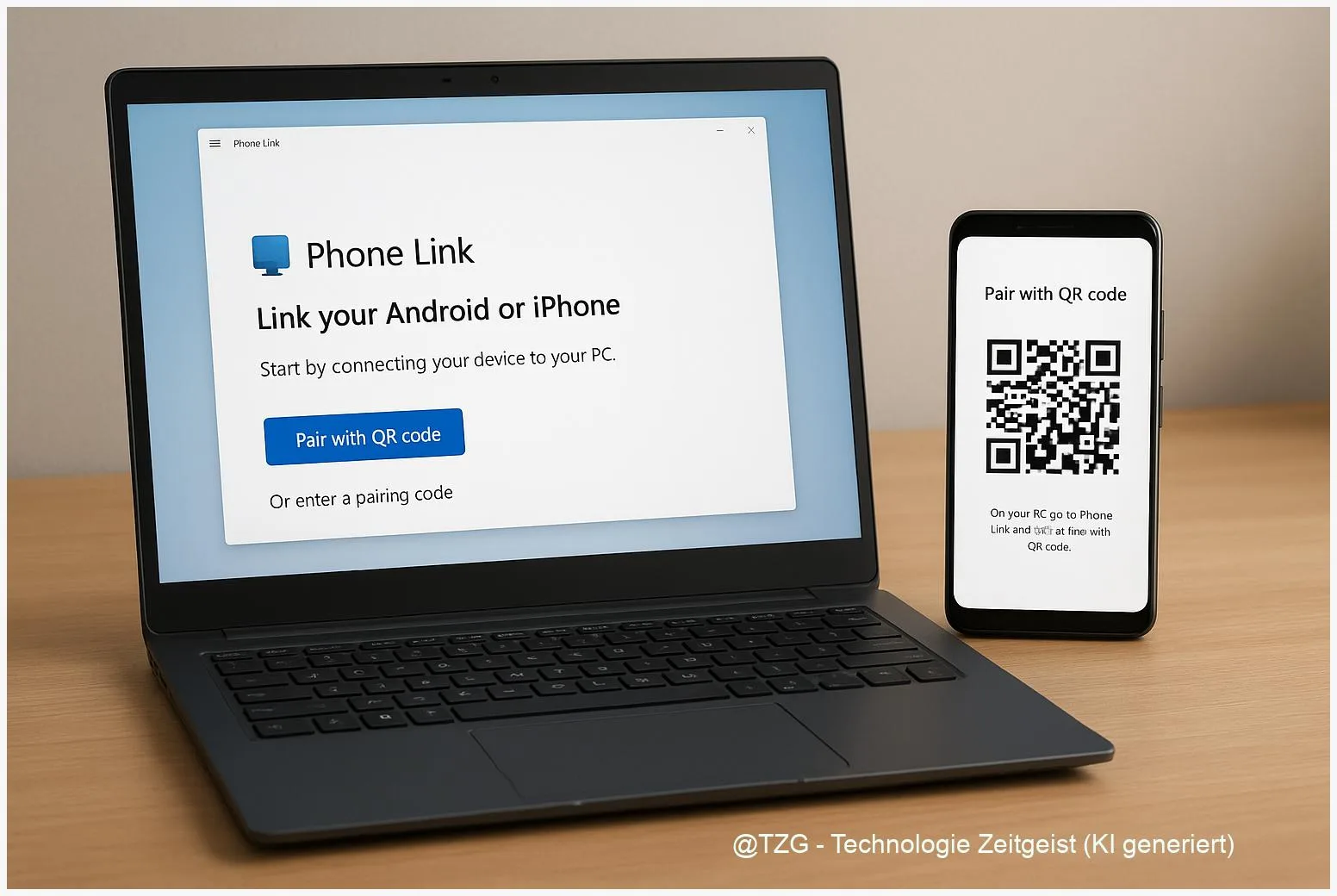
Phone notifications popping up on your desk, photos stuck on your small screen, and quick texts turning into a phone-grab every few minutes: that is exactly what Windows 11 Phone Link is built to fix. This guide shows how to do Handy-Link einrichten Windows 11 (set up Phone Link), pair Android or iPhone safely, and use calls, messages, notifications, and photos from your PC—without guesswork.
Introduction
Many people work with a laptop or desktop all day, but their phone stays the center for messages, two-factor login codes, photos, and notifications. The constant context switch is tiring: you unlock the phone, get distracted, and lose your flow. Phone Link in Windows 11 aims to reduce that friction by bringing a practical subset of your phone onto the PC.
The idea is simple: your phone remains the primary device, while Windows shows what you need at the moment—like incoming notifications, recent photos, or a quick reply. Android typically offers the widest feature set. iPhone support exists too, but with clearer limits due to iOS restrictions.
Below you will set up the connection cleanly, learn what to expect on each platform, and get fixes for the most common pairing issues.
Basics and Overview: what Phone Link does (and what it can’t)
Phone Link is a Windows app that connects your PC to a smartphone so you can handle everyday phone tasks from the desktop. On Android, it can show and manage notifications, send and receive text messages, view photos, and make calls (calls require Bluetooth). On some supported Android devices, Windows can even display phone apps on the PC—Microsoft lists these as “supported devices for Phone Link experiences.”
On iPhone, Phone Link focuses on basics like calls, SMS-style messages, notifications, and contacts. It does not provide full iMessage features or phone app mirroring. That is not a flaw of your PC—Apple’s platform limits what third-party apps can integrate.
Phone Link works best when you treat it as a “quick access panel” to your phone, not a full phone replacement.
One more naming detail: depending on your Windows language, the app may appear as Phone Link or as Smartphone Link (often called “Handy-Link” in German guides). Functionally, it is the same Microsoft app.
| Option or Variant | Description | Suitable for |
|---|---|---|
| Android + Link to Windows | Broadest feature set: notifications, messages, photos, calls; some models support app access/phone screen. | Most users who want a real day-to-day workflow on Windows. |
| iPhone + Link to Windows | Core features only: calls, basic messages, notifications, contacts; fewer integration options. | iPhone users who mainly want fewer phone pickups while working. |
Preparation and Prerequisites (before you start pairing)
A smooth setup is mostly about meeting a few requirements and granting the right permissions. Microsoft recommends using current Windows 11 builds and keeping the Phone Link app updated. On the phone side, you typically need the “Link to Windows” app (Android: usually from Google Play or preinstalled; iPhone: from the Apple App Store).
Check these points first:
- Windows 11 PC: Phone Link installed (usually preinstalled) and up to date. Bluetooth should be available; calls need Bluetooth pairing.
- Android phone: Android 8.0+ (newer versions are generally smoother). Install or update Link to Windows. For advanced features like phone screen/apps, device support varies—check Microsoft’s supported-device list.
- iPhone: iOS 15+ is commonly required in Microsoft’s documentation; in practice, the App Store listing may require a newer iOS version depending on updates. Install or update Link to Windows.
- Account: Be ready to sign in with a Microsoft account during setup.
- Network and proximity: Keep phone and PC close. Many features use Wi‑Fi; calls rely on Bluetooth.
- Permissions: Plan to allow notifications, contacts, Bluetooth, and (on Android) SMS access—otherwise key features will stay disabled.
Privacy note: Phone Link is designed to show phone content on your PC. If your PC is shared, consider using Windows sign-in (PIN/biometrics) and locking the screen when you leave your desk.
Step-by-Step Instruction: pair Android or iPhone with Windows 11 Phone Link
The pairing flow is similar on Android and iPhone: you start on the PC, choose your phone type, and confirm the link from the phone (often via a QR code). The exact wording may vary slightly by Windows version, but the landmarks stay consistent.
- Open Phone Link on Windows 11. Use Start menu search for “Phone Link” (or “Smartphone Link”).
- Select your phone type: choose Android or iPhone. Windows will display the next steps and often a QR code.
- Sign in with your Microsoft account on the PC if prompted. Use the account you want associated with the connection.
- Install/open “Link to Windows” on your phone.
- Android: open Link to Windows (sometimes integrated in system settings on certain brands).
- iPhone: open Link to Windows from the App Store install.
- Scan the QR code shown on your PC (or follow the on-screen alternative method if offered). Confirm that you are pairing with the correct PC name.
- Grant the requested permissions.
- For notifications: allow notification access so alerts can appear on the PC.
- For calls: allow Bluetooth and contacts access; keep Bluetooth enabled.
- For messages (Android): allow SMS permissions if you want texting from the PC.
- Finish setup in Phone Link settings. In the app, look for sections like Notifications, Messages, Calls, Photos, or “Additional features,” and switch on only what you actually plan to use.
- Quick check: trigger one test event. For example, send yourself a text, or have another device call you, and confirm it appears in Phone Link.
If everything worked, you should see your phone listed as connected in Phone Link. Notifications may start showing within a minute once permissions are in place. For calls, Windows may also prompt you to confirm a Bluetooth pairing request.
Tips, Troubleshooting, and Variants
Most Phone Link problems come from three areas: Bluetooth pairing, missing permissions, or battery/network restrictions. These quick fixes solve a large share of real-world cases.
Common issues and fixes:
- No notifications on the PC: On the phone, re-check notification permission for Link to Windows. Also confirm that Phone Link notifications are not disabled in Windows notification settings.
- Calls don’t work: Calls require Bluetooth. Turn Bluetooth off and on on both devices, then re-pair if needed. Make sure the PC microphone/speakers are selected correctly in Windows sound settings.
- Messages missing (Android): SMS access can be denied during setup. Open Link to Windows on the phone and review permissions. Some work profiles or managed devices may restrict SMS access.
- Photos look different than expected: Microsoft has moved parts of photo access toward File Explorer integration on some setups. If you don’t see photos in Phone Link, check whether your phone appears under Windows File Explorer “mobile devices” features (availability can vary by version).
- Connection drops frequently: Disable aggressive battery optimization for Link to Windows (Android) and keep both devices on a stable network. Also check that VPN or strict firewall rules are not interfering.
Practical usage tips: If you only want fewer interruptions, enable notifications and calls, but keep message sync off. If you work on a shared PC, consider disabling message previews and only using “dismiss” actions. And if you mainly need file transfer, Windows and phone cloud services can be a simpler alternative than full syncing.
Variant for power users (Android): If your phone is on Microsoft’s supported list, explore advanced features like viewing phone apps on the PC. These are device-dependent, so it is normal if your model only offers the core set.
Conclusion
Phone Link is one of the most practical ways to connect a smartphone with a Windows 11 PC: you stay focused on the bigger screen while still catching important calls, messages, and notifications. Android users usually get the most features, while iPhone users get a solid, more limited set that still reduces phone pickups during work or study.
If you follow the preparation checklist, grant permissions deliberately, and remember that calls depend on Bluetooth, setup is typically quick. Once it runs, you can fine-tune which features are active so the PC feels calmer—not more distracting.
Have you tried Phone Link on Android or iPhone—what worked well for you, and where did you get stuck? Share your setup tips, and pass this guide on to someone who is tired of constant phone switching.




Leave a Reply